
Getting a real estate website that actually works for you starts with the right tools. Learn how to sign up for Showcase IDX for your real estate website in WordPress.
If you want to add this feature to your website, you need to know how to create an account and set it up correctly.

Signing up for Showcase IDX takes only a few minutes and includes a 15-day free trial, so you can poke around before deciding. The process walks you through creating your account, connecting it to your real estate website, and setting up lead-capture features.
I’m an approved vendor for Showcase IDX and my real estate team uses this product.
I’ll walk you through each step so you can get your IDX running quickly.
After sign-up, you’ll land in a dashboard where you can customize how listings appear on your site. You can also set up registration forms to collect visitor info when they search for properties.
This guide covers everything from creating your account to using advanced features that help you connect with buyers and sellers.
Key Takeaways
- Showcase IDX offers a 10-day free trial so you can test the platform before you buy.
- The setup covers account creation, website integration, and lead capture configuration.
- You can customize registration settings to collect visitor info and generate more leads from your real estate website.
Starting Your Showcase IDX Journey

Showcase IDX gives real estate pros tools to display MLS listings on WordPress sites and capture leads. There’s a no-commitment trial period, so you can check out the features before paying anything.
Overview of IDX Solutions
IDX solutions connect your real estate website to the MLS database. This lets buyers search active listings right on your site instead of bouncing to competitors or big portals.
Showcase IDX works as a WordPress plugin that adds property search features to your existing website. The system updates listings automatically as they change in the MLS.
I can customize search filters, map views, and property detail pages to match my brand. The platform includes lead capture forms that collect visitor info when they save searches or favorite properties.
Email notifications keep buyers engaged with new listings that match what they want. This automation helps me stay connected with potential clients without chasing every property update myself.
Understanding the Free 10-Day Trial
The free 10-day trial gives me full access to Showcase IDX features, and I don’t need to enter payment info upfront. I can test out the property search interface, lead tools, and customization options during this period.
The trial includes full MLS integration for my area. I can tweak registration settings, colors, fonts, and set up automated email notifications.
All leads I capture during the trial stay in my database even if I don’t go with a paid plan. I use this time to see how the platform fits my workflow. Testing mobile responsiveness and search speed helps me see what buyers will experience.
Eligibility and Requirements
Agents, brokers, and teams with active MLS memberships can sign up for Showcase IDX. I need a WordPress website since the platform runs as a plugin, not a standalone builder.
My WordPress site should meet basic technical requirements for plugin compatibility. I make sure my hosting can handle the extra database queries that come with live MLS data. I’ll also need my MLS credentials handy for integration.
Step-by-Step Account Creation
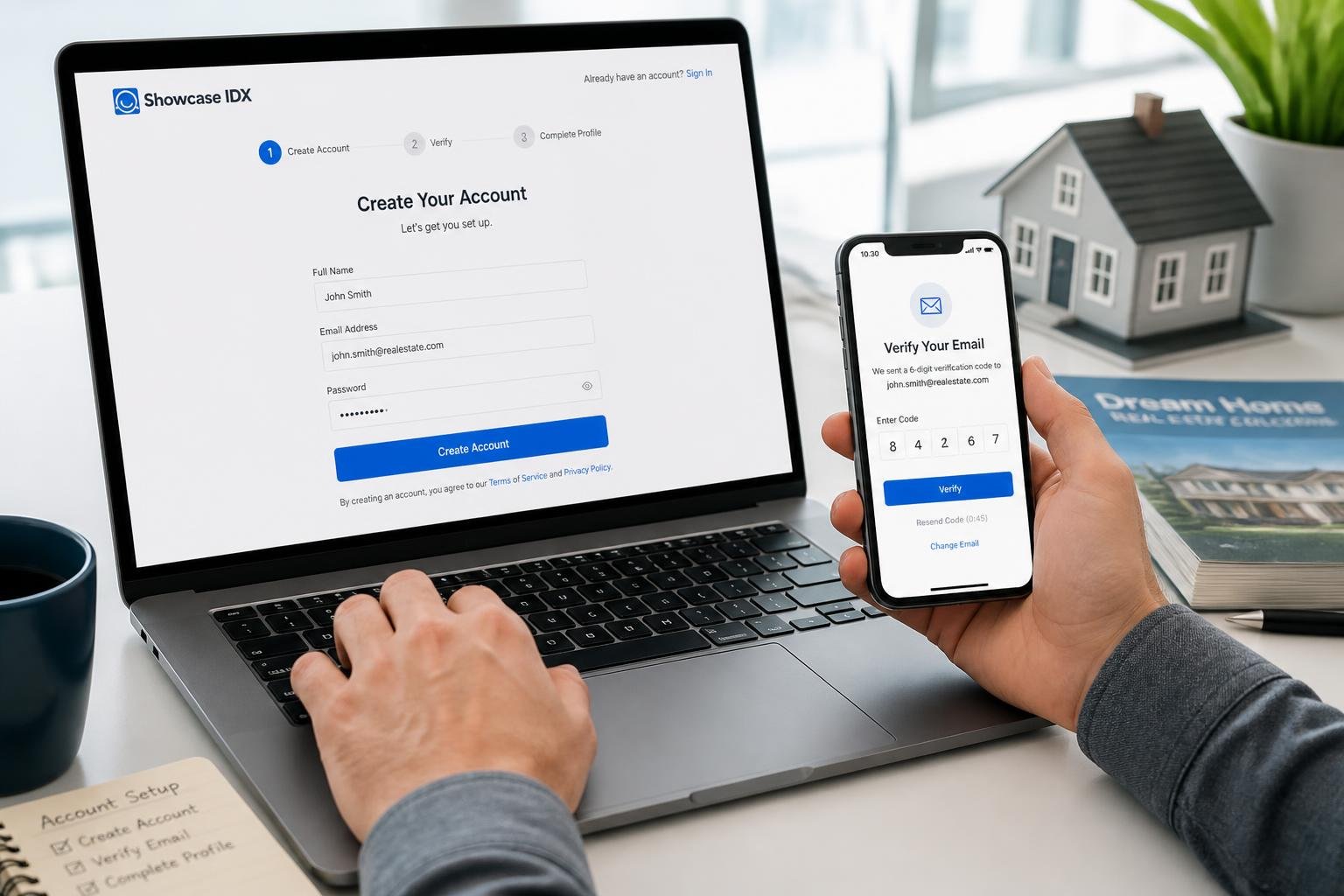
Creating a Showcase IDX account means picking a plan that fits your business, filling out the sign up form, and choosing your registration method. I’ll walk through each part so you can get going fast.
Choosing the Right IDX Plan
Showcase IDX has different plans based on the features you want for your site. Premium users get more advanced lead capture tools and customization options than basic plans offer.
Before starting, I check what each plan includes. Main differences are the number of websites I can connect, customization levels, and lead management tools. Premium plans usually come with advanced registration prompts and better integration.
I think about what I need now and what I might need as I grow. If I’m new, a basic plan might be fine. If I want more control and stronger lead generation, premium makes more sense.
Registration Process and Sign Up Form
The sign up form asks for simple info to create my account. I’ll need my name, email, phone, and business details. The form also wants me to make a password.
I double-check my info to make sure it’s right. My email is important since Showcase IDX uses it for verification and future updates about my account.
After I submit the form, I get a confirmation email. I click the link in the email to activate my account and finish setting up Showcase IDX.
How to add Showcase IDX to Your Website
- Go to the sign up page on my website which links directrly to Showcase company site.
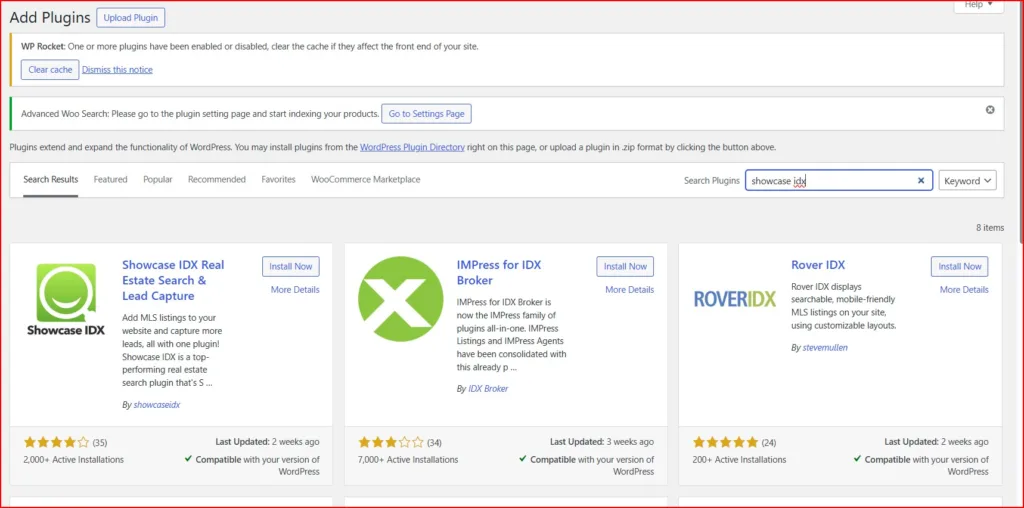
- Go to the Plugins menu (under appearance in the backend of the WordPresss website
- this is what it will look like. Click install now
Social and Google Sign Up Options
I can skip the regular form by using social or Google sign-up. These let me create an account with my existing Google or social media credentials.
The Google option connects straight to my Google account. I click the button, pick my account, and give Showcase IDX permission to grab my basic profile info.
Social sign-up works the same way with platforms like Facebook. It saves time since I don’t have to type as much—the system pulls my name and email automatically.
Configuring Registration and Lead Capture Settings
Registration settings control how and when you collect info from people looking at MLS listings on your site. I can change everything from the text visitors see to how often prompts pop up.
Adjusting Registration Settings
I get to registration settings through the Showcase IDX Control Panel—just go to Settings, then Registration. There are options for when to show registration walls to visitors.
I can pick between prompt types. A soft prompt asks visitors to register but lets them keep browsing if they don’t want to. A hard wall requires sign-up before they can see certain content.
Premium users get the Premium Listing Detail Page Content lock, which hides full property details until visitors register. I can set these rules for all IDX pages or customize for certain sections.
The timing of prompts matters. I can pick how many listings someone sees before a prompt shows up. I can also set how many search results they get before registration is required.
Customizing Sign Up Header and Value Text
The sign up header text sits at the top of my registration form. I use it to tell visitors why they should create an account. Simple, direct language is best.
Sign-up value text tells visitors what they get if they register. I list stuff like saved searches, property alerts, or extra listing photos.
I keep both sections short and focused. Most people decide fast whether to register, so I make the value clear right away.
Testing different messages helps. Sometimes “Save Your Favorite Homes” works better than “Get Instant Property Alerts”—you just never know until you try.
Managing Registration Prompts
I control when and where registration prompts show up across the Showcase IDX integration. The settings help me balance lead capture with user experience.
I can set prompts to appear after a certain number of property views. Starting with 3-5 views lets people explore a bit before I ask them to register. Too many early prompts? People leave.
Different page types can have different rules. Maybe I require registration sooner on premium listings and let people browse more on basic search results. This way, I target serious buyers without annoying casual browsers.
I check my prompt frequency now and then. If bounce rates go up, I dial back the prompts. If I’m not getting enough leads, I make registration a little stricter.
A/B Testing for Optimal Lead Capture
I run tests to see which registration approach gets the most leads. Showcase IDX doesn’t have built-in A/B testing, so I do it manually—change a setting, track what happens.
I test one thing at a time. Maybe I try a soft prompt for two weeks, then a registration wall for two weeks, and see which gets more signups.
The number of page views before prompting matters, too. I’ll test showing prompts after 3, 5, or 7 views and watch both registration rates and how long people stay on my site.
Lead quality matters as much as quantity. Getting 100 leads who never reply isn’t better than 50 who actually reach out. I keep an eye on which settings bring in visitors who contact me about properties.
Integrating with Your Real Estate Website
Once you finish setting up Showcase IDX, integration connects your MLS listings to your real estate site. The system pulls in property data through automated feeds and customizable search pages.
IDX Integration Process
The integration starts by connecting your MLS data feed to your website platform. I go to my Showcase IDX dashboard and find the integration settings. The system gives me API credentials or embed codes to link MLS data to my site.
For WordPress, I install the Showcase IDX plugin from the WordPress repository. I open my WordPress admin, search for “Showcase IDX” in plugins, and click install. After activation, I enter my account credentials to connect everything.
The integration works on other platforms, too. I can add Showcase IDX to custom sites using JavaScript embed codes or iFrames. Usually, it takes 15–30 minutes to complete the initial connection.
Showcase IDX Setup Completion
After setup, I check that the data feed pulls listings correctly. I look at my Showcase IDX dashboard to confirm properties are syncing from the MLS. There’s a status indicator showing when the last data refresh happened.
I test the integration by visiting my website and making sure listings show up with accurate info—photos, descriptions, pricing, and location data. Showcase IDX updates listings automatically, usually every 15 minutes to an hour, depending on my MLS board.
I also tweak my lead capture settings at this point. The system lets me customize contact forms and registration requirements for people browsing listings.
Embedding MLS Listings
To show MLS listings on specific pages, I use Showcase IDX’s embedding tools. The dashboard gives me a few options:
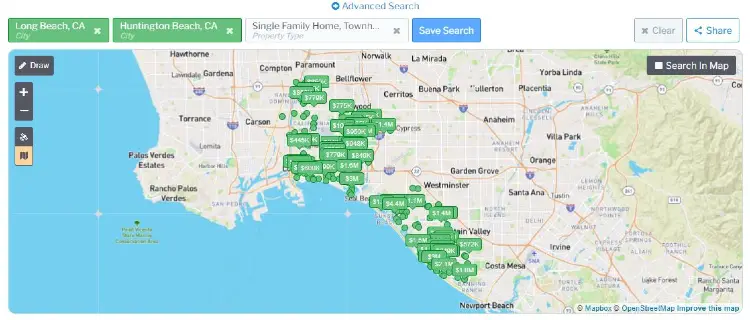
- Full search pages with map-based interfaces
- Featured listings widgets for homepages
- Property detail pages with complete MLS data
- Search result galleries filtered by criteria
I embed these using WordPress shortcodes or embed codes for other platforms. For example, I might add a featured listings carousel to my homepage by pasting the shortcode into my page editor.
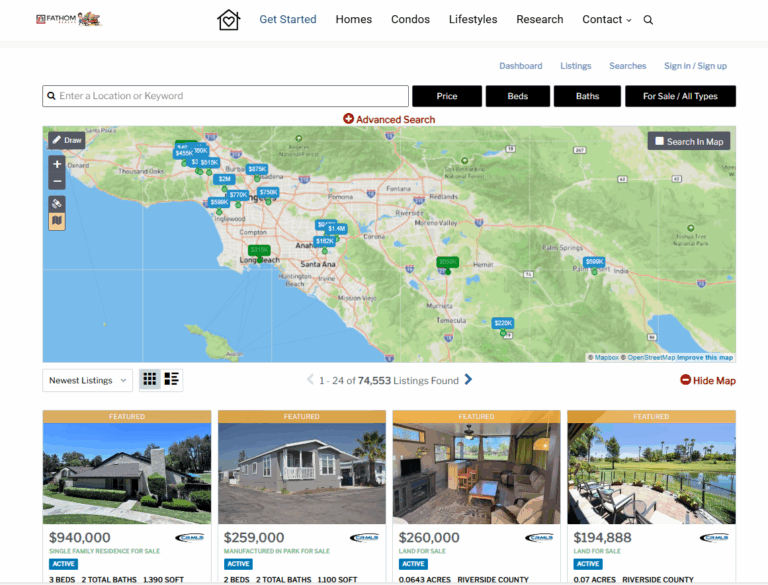
The embedded listings load quickly and look good on mobile. Visitors can filter by price, bedrooms, bathrooms, square footage, and other amenities—all without leaving my site.
Setting Up the Default Search Page
My default search page is the main property search hub on my site. I get to it in the Showcase IDX dashboard under “Pages” or “Search Settings.”
I customize the layout by picking from templates—map-first, grid, or list views. I decide which search filters to show up front, like location, price, or property type.
I can set the URL for my default search page. Usually, I go with something easy like “mywebsite.com/search” or “mywebsite.com/listings.” I add this to my main menu so visitors can find it fast from anywhere on my site.
Optimizing Lead Generation and Client Engagement
Once I set up Showcase IDX, I need to keep a close eye on leads and watch how buyers interact with my listings. The platform gives me tools to track search activity, send out automated notifications, and stay in touch with potential clients.
Lead Management via the IDX Control Panel
The IDX control panel acts as my main base for handling all incoming leads. When someone searches for properties on my site, I can see their info and activity in one place.
If I meet buyers or sellers elsewhere, I can add them manually. The control panel lets me organize contacts by search preferences and activity, so I know who needs attention now and who can wait.
Each lead profile shows what properties they’ve viewed and saved. I jot down notes about our conversations and set reminders for follow-ups.
The system keeps all this info handy, making it easier when I talk to buyers again down the road.
Tracking Search Activity
I can see exactly what buyers want by checking their search activity. The platform logs every search, listing detail view, and property a visitor saves or shares.
This tells me which neighborhoods and price ranges each lead likes. If someone keeps looking at three-bedroom homes in one area, I know where to focus.
I can also see how often they’re on my site and how long they spend browsing. The tracking even covers map searches and filter tweaks.
When buyers draw custom search areas or change price ranges, I spot these actions in their activity log. That helps me understand what they’re really after, way better than just relying on an initial inquiry form.
Saved Search Notifications
Saved search notifications keep my leads engaged without me having to do everything by hand. With automated emails, buyers get updates whenever new listings match what they’re looking for.
I can set how often these go out—some people want daily emails, others prefer a weekly round-up. The system sends out professional-looking messages with property photos and details.
These regular updates remind buyers about my site. When they’re ready to schedule a viewing, I’m more likely to be the person they contact.
Contact and Follow-Up Strategies
I need a clear plan for reaching out to leads based on their actions. If someone creates a saved search or asks for more info, I try to follow up within 24 hours.
For active leads who check out lots of listings, I send personalized emails with other properties they might like. I mention specific homes they’ve viewed so they know I’m paying attention.
For less active leads, I stick to the automated saved search emails. I track all my communication in the control panel, which helps me avoid sending repeat messages or missing a follow-up.
The lead capture forms collect phone numbers and emails, so I’ve got options for reaching out.
Utilizing Advanced Registration Features
Showcase IDX comes with several registration tools to help capture leads at different points in the search. I can control when visitors need to register, whether that’s to view listings or access premium content.
Configuring Listing Detail Page View Locks
I can set up listing detail page view locks so visitors have to register after viewing a certain number of properties. The system tracks how many listing pages someone sees before popping up the sign-up form.
I get to pick the exact number of free views—maybe three—before asking for an email. This gives visitors a taste of the site without handing over everything for free.
With the premium plan, I might use the Premium Listing Detail Page Content lock. Showcase IDX recommends this for balancing lead capture and a good user experience.
Implementing Search Results Lock
The search results lock controls when visitors must register to keep browsing search results. I can set this to pop up after a certain number of searches or other triggers I choose.
This lock works differently from the listing detail page lock; it stops users at the search level, not just on property pages. The registration form appears before they can see more results.
I try to balance lead capture with a smooth user experience here. If I ask too soon, people might bounce. The settings panel lets me fine-tune timing and frequency.
Enabling Premium Listing Content Access
Premium listing content covers detailed MLS features beyond just price and bedrooms. This includes info about square footage, amenities, and more.
I can restrict this premium content to encourage registration. Visitors see basic info without signing up, but need to register for full details.
The premium plan lets me customize what counts as premium content and when registered users can access it.
Population Insight and User Value
With a soft prompt, I show registration forms at key moments instead of forcing sign-up right away. This gives visitors time to see what my IDX tools offer before asking for their details.
I try to think about what my visitors actually get from registering. Features like search subscriptions send new listings to their inbox on their schedule.
The search dashboard lets them track activity and even invite others to search together. These extra features give people a reason to register, not just a locked screen.
When I set up registration, I try to highlight these benefits clearly on the sign-up form.
Resources and Ongoing Support
After signing up for Showcase IDX, you’ll get access to several support channels and resources. The platform offers documentation, video tutorials, and direct help from their team to guide you through IDX integration and site optimization.
Accessing the Showcase IDX Help Center
The Showcase IDX Support Center is your main spot for documentation and tutorials. I can find detailed guides on customization, FAQs, and technical instructions for different features.
The support center has written guides for everything from basic setup to advanced tweaks. There are articles on lead management, website settings, and troubleshooting, all organized by category.
Video tutorials are there if you learn better by watching. These cover things like using the mortgage calculator, installing the WordPress plugin, updating search settings, and handling registration requirements.
Reviewing the Getting Started Guide
The getting started guide walks me through the initial setup after IDX approval. I get this guide by email from Showcase Onboarding when my 10-day free trial kicks off.
This guide covers three main things:
- Setting up basic website info and default search parameters
- Configuring lead management and saved search notifications
- Customizing colors, fonts, and email templates
The guide explains how to use the Showcase IDX control panel to manage everything. I can add leads, create automated search subscriptions, and track activity from the dashboard.
Community and Support Team
The Showcase team offers direct support through several channels. I can reach out for technical help, onboarding questions, or troubleshooting.
There are onboarding specialists for new account setup and broker authorization. Resellers and developers get their own documentation for the commission partner program and client signups.
I can submit support tickets through the help center or contact the team directly. Response times depend on my question and how busy support is at the moment.
Continuous Optimization Tips
Regular tweaks keep my IDX running smoothly. I check my website settings every so often to make sure search parameters still fit the current market and what buyers want.
Lead management takes steady attention. I set up saved searches for clients and watch which listings get the most clicks using the activity timeline.
Testing different registration settings helps me find the best balance between getting leads and keeping things easy for visitors. I can adjust these in the control panel based on what works.
The Search Library lets me save custom searches to share with clients or embed on certain pages. This helps me target different buyer groups and see which property types get the most interest.
Frequently Asked Questions
Getting started with Showcase IDX takes a few steps, from gathering your business info to activating your account and picking a subscription plan that fits.
What information do I need before creating an account?
I need my basic business info ready before starting registration. That means my real estate license number, MLS board details, and business contact info.
It’s good to have my website URL handy if I already have a site. Having a payment method ready speeds things up if I pick a paid plan.
Where do I go to start the account registration process?
I can go to the official Showcase IDX website to start registration. Usually, the signup page is under “Get Started” or “Sign Up” on their homepage.
I can also find the registration form through partner websites or real estate service providers that offer Showcase IDX. The process starts the same way, no matter where I begin.
How do I choose the right plan and billing cycle during registration?
I review the different plan tiers based on what I need as an agent, team, or broker. Showcase IDX has several pricing levels with different features like MLS feeds, lead capture tools, and customization options.
I choose between monthly and annual billing during signup. Annual usually comes with a discount compared to paying month-to-month.
I look at things like how many listings I want to show and what level of lead capture I need. Starting with a plan that matches my current business size makes sense, since I can always upgrade later.
Can I use a free trial, and what happens when the trial ends?
Showcase IDX sometimes offers trial periods depending on current promos and the plan I pick. I should check their website or ask sales to see if a trial is available.
If I sign up for a trial, I get access to features for a limited time without paying. When the trial ends, I have to pick a paid plan to keep using the service.
My account settings and customizations usually stay saved after the trial. I just need to add payment info and pick a plan to get full access back.
How do I verify my email and complete account activation?
After I send in my registration info, Showcase IDX emails me a verification link. I need to open that email and click the activation link.
The link takes me to a page where I confirm my account and set up login credentials. This step proves I own the email and keeps out fake signups.
Once I finish email verification, I can log in to the Showcase IDX dashboard and start setting up my property search integration.
What should I do if I don’t receive the activation email or can’t log in?
If the activation email doesn’t show up in my inbox after a few minutes, I’ll check my spam or junk mail folder. Email filters can be a bit overzealous and sometimes block automated messages.
If the email’s still missing, I’ll try requesting a new activation link from the Showcase IDX login page. There’s usually a “resend verification email” button somewhere on there—hopefully easy to spot.
After activating my account, if I still can’t log in, I’ll use the password reset feature on the login page. If nothing works and I’m still stuck, I’ll reach out to Showcase IDX support through their help center or the support contact form. Sometimes, you just need a real person to step in.