
Realtors: See how to pair Google Maps with Showcase IDX using neighborhood pages, saved searches, and map embeds to boost local home search engagement.
If you have ever tried to drop your MLS listings onto a Google map, you already know the two platforms don’t talk to each other the way you might expect. Buyers love scrolling a familiar map, but live property search runs on rules that Google Maps was never built to follow.
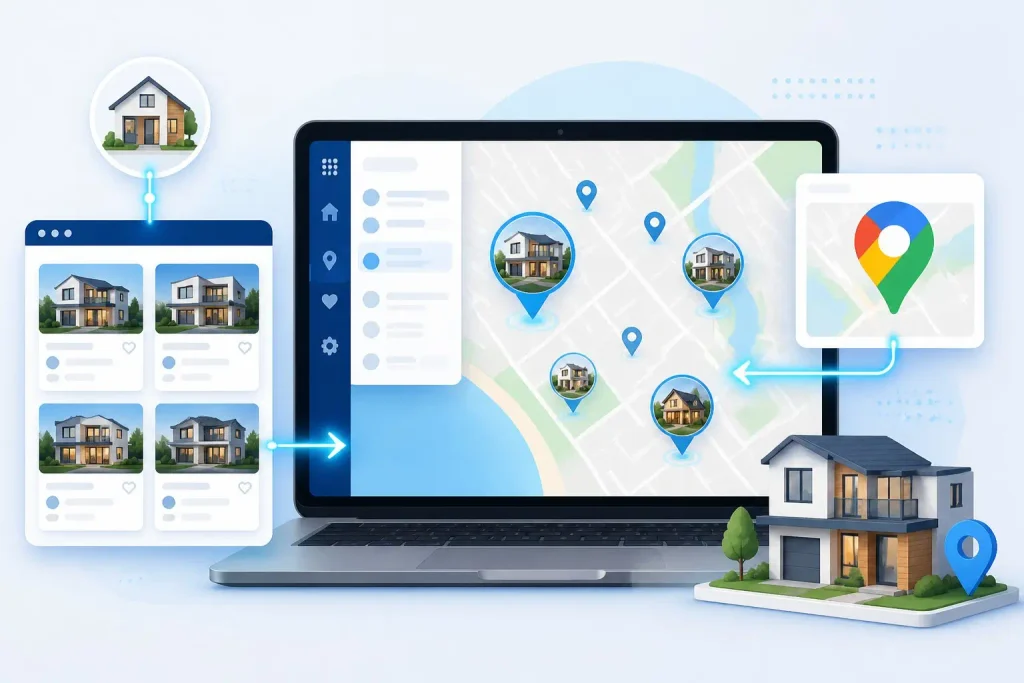
Showcase IDX already includes its own MLS-connected map search, and Google Maps works best alongside it as a tool for neighborhood context, office locations, and lifestyle landmarks, not as a replacement for live listing data. Once you understand which platform handles which job, setting up a map-based search experience for buyers gets a lot simpler. Coastal Southern California buyers searching for a home near the water or a specific school zone want both: accurate listings and a clear sense of place.
What Showcase IDX and Google Maps Can Do Together
Showcase IDX pulls live listing data straight from your MLS and displays it on its own interactive map. Google Maps, on the other hand, is built for general-purpose location browsing: driving directions, nearby businesses, and satellite imagery. Used together, they cover both the search side and the local-context side of a buyer’s experience.
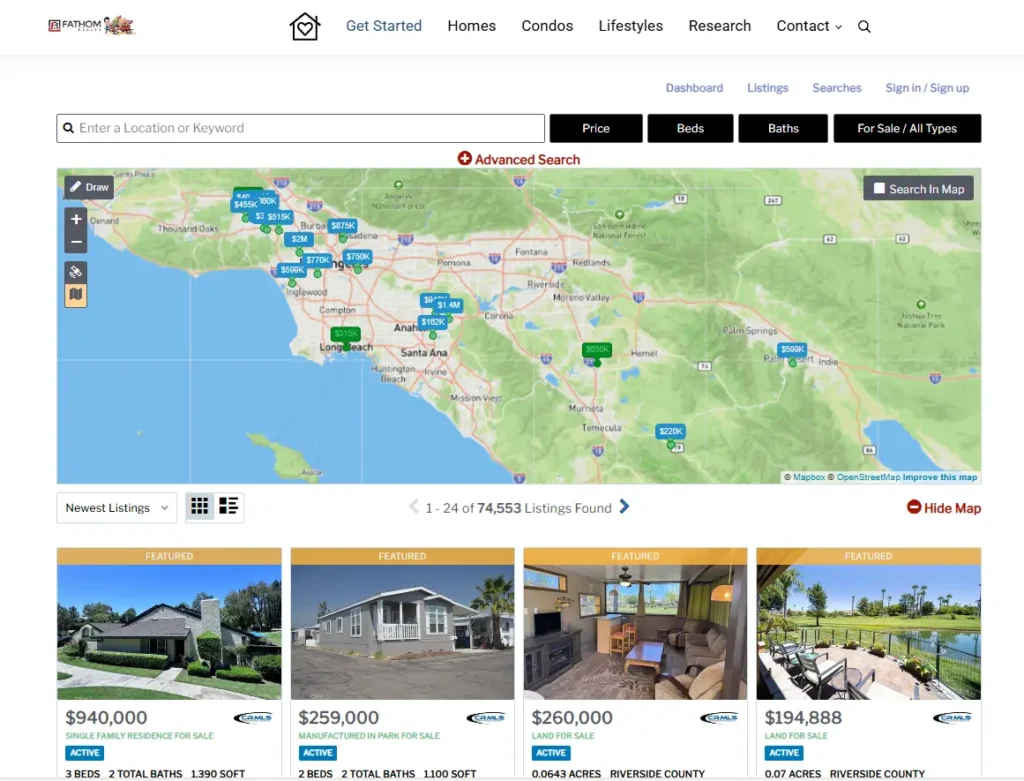
Showcase IDX’s Native MLS Map Search
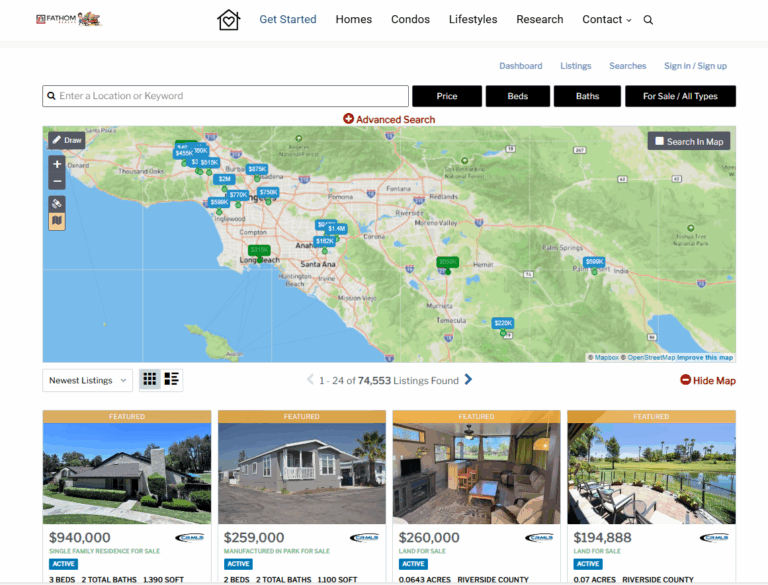
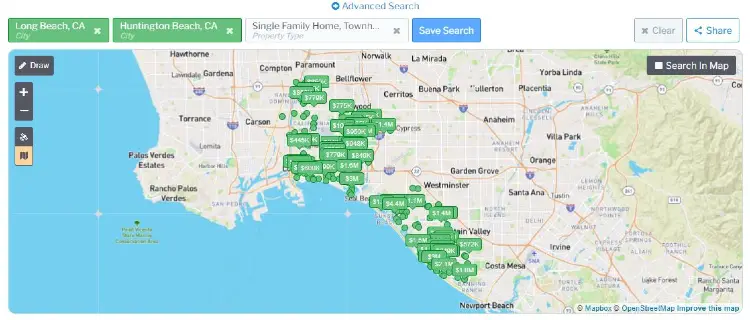
Showcase IDX includes a built-in map search that draws directly from your MLS feed. Buyers can drag the map, zoom into a neighborhood like Belmont Shore or Naples Island, and see current listings update in real time. The polygon drawing tool lets a buyer outline the exact blocks they want, which matters in a market where being one street closer to the water changes the price significantly.
When Google Maps Adds Useful Location Context
Google Maps helps once a buyer has narrowed down a listing or neighborhood. Street View lets them check out a block before driving over. An embedded Google map on a neighborhood page can show parks, marinas, schools, and restaurants near a listing, giving buyers context that MLS data alone won’t provide.
Why Live MLS Listings Cannot Simply Be Added to a Google Map
MLS data comes with display rules set by the multiple listing service, and most MLS agreements do not allow raw listing feeds to populate a third-party map like Google’s. Google Maps also has no built-in way to sync with MLS updates in real time. That’s why IDX providers like Showcase IDX build and maintain their own mapping systems instead of routing listings through Google.
Choose the Right Integration Approach Before You Start
The right approach depends on whether you’re using Showcase IDX on a standard WordPress site or working through an IDX Broker account. Showcase IDX doesn’t require IDX Broker-specific tools, and mixing up the two platforms is one of the most common setup mistakes agents make.
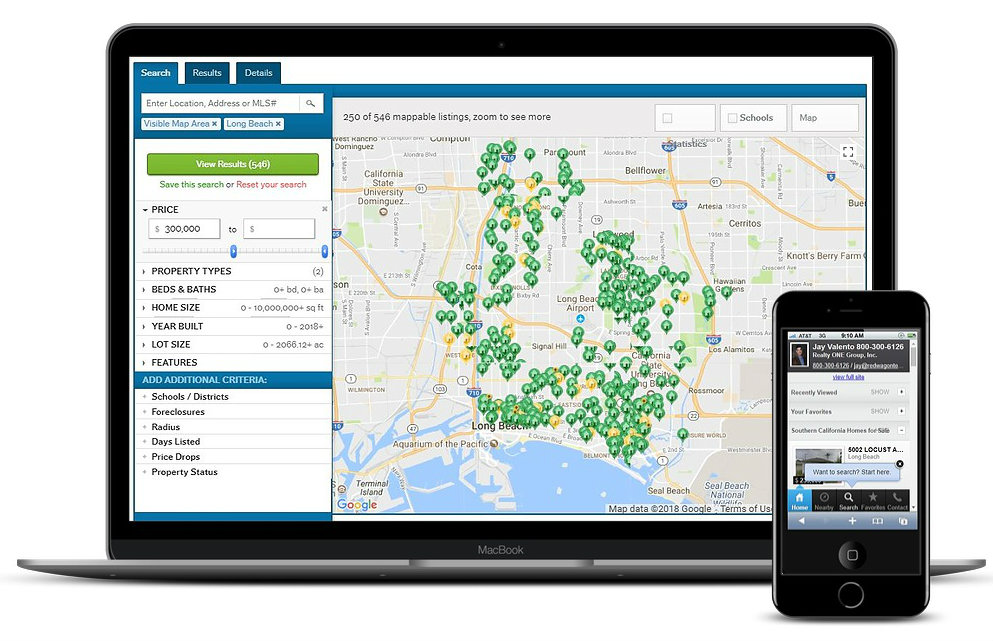
Linking a Google Map to a Showcase IDX Search Page
The simplest, safest setup links out from a Google Map to your Showcase IDX search results. You place a Google Map widget on a page showing an area of interest, then add a button or link that sends visitors to a matching Showcase IDX search filtered to that neighborhood. This keeps live MLS data inside Showcase IDX where it belongs, while still giving buyers a familiar map to explore first.
Embedding a Google Map on Neighborhood and Location Pages
A standard Google Maps embed works well on neighborhood guide pages, office location pages, or “about the area” content. You can drop pins for local landmarks, marinas, or school zones, and pair that with a call to action pointing to your Showcase IDX search for that same area. This setup uses two separate tools doing two separate jobs, and it doesn’t require an API key restricted to sensitive data.
When an IDX Broker App Is Not Compatible With Showcase IDX
IDXAddons builds a Google Maps app specifically for IDX Broker accounts, letting agents swap their default IDX map display for a Google-powered one. That tool connects to IDX Broker’s system architecture and does not install or function inside Showcase IDX. If your website runs on Showcase IDX, look at Showcase IDX’s own mapping features and support resources instead of trying to install an IDX Broker-specific plugin.
Set Up Maps and Searches That Help Buyers Find Homes
The most useful setup pairs a location-focused Showcase IDX search with clear map links that guide buyers straight to it. Buyers searching Long Beach and nearby coastal cities tend to search by neighborhood name first, so your search and map setup should match how people actually look for homes.
Create Location-Focused Searches in Showcase IDX
Build saved searches around specific neighborhoods, price bands, or property types, such as waterfront homes with private docks or condos under a certain HOA fee. Showcase IDX lets you filter by amenities and features pulled straight from CRMLS data, so a search for “Naples Island waterfront homes” can return only listings that match. Save these as shareable links or embed them directly on matching neighborhood pages.
Add Clear Map Links and Search Calls to Action
Every neighborhood or location page should include a visible button linking to its matching Showcase IDX search. A phrase like “See current Naples Island listings” works better than a generic “search homes” link, because it tells the buyer exactly what they’ll find. Keep the link close to any embedded Google map so the connection between location and listings is obvious.
Use Local Area Pages to Connect Map Context With Listings
Local area pages work best when they combine a map, a short description of the neighborhood, and a direct link to listings. A site like RedWagonTeam pairs neighborhood-specific content across more than 50 Long Beach areas with CRMLS-sourced listing data, giving buyers both the lay of the land and accurate, current inventory in one place. That combination helps buyers understand a location before they ever schedule a showing.
Protect Data Access and Support Search Visibility
Setting up maps and IDX search pages correctly protects your MLS data access and helps your listing pages show up in Google search results. Two separate concerns come into play here: keeping your Google Maps API key secure, and making sure Google can find and index your IDX pages.
How to Secure a Google Maps API Key
A Google Maps API key is a code that lets your website connect to Google’s mapping service, and it needs to be restricted so other websites can’t use it without permission. In your Google Cloud Console account, restrict the key to your specific domain and limit it to only the Maps APIs you’re actually using. An unrestricted key can rack up unexpected charges if someone else finds and reuses it, so verify your restrictions are active before publishing any page with an embedded map.
What an XML Sitemap Does for IDX Listing Pages
An XML sitemap is a file that lists your website’s pages so search engines can find and crawl them efficiently. Showcase IDX generates listing pages dynamically as MLS data updates, and a sitemap helps Google discover new and updated listing URLs faster.
Check your Showcase IDX settings or WordPress SEO plugin to confirm listing pages are included in your sitemap submission to Google Search Console.
How MLS Rules and Listing Statuses Affect Map Results
MLS rules control which listing statuses, like active, pending, or sold, can be displayed publicly and for how long. CRMLS and other regional MLS organizations set these display rules, and Showcase IDX applies them automatically based on your MLS agreement.
Sold listing data often has stricter display rules, so always verify current status and details directly with your MLS or listing agent before relying on any displayed figure.
Use Google Maps for Context and Showcase IDX for Search
Showcase IDX should handle the property search, and Google Maps should handle everything around it. That division keeps your MLS data compliant with your listing agreement while still giving buyers the map-based browsing experience they expect from a modern real estate site.
Think of Google Maps as the scenery and Showcase IDX as the search engine. A buyer exploring the Long Beach Peninsula might start with a Google map showing the beach, local shops, and marina access, then click through to a Showcase IDX search filtered to that exact stretch of coastline. Neither tool needs to do the other’s job for this to work well.
Conclusion
Showcase IDX and Google Maps solve two different problems for real estate websites, and trying to force one into the other’s role creates more friction than it solves. Keep your live MLS search inside Showcase IDX, use Google Maps for neighborhood and location context, and link the two together with clear, specific calls to action.
Securing your API key and submitting an accurate sitemap protect both your data access and your search visibility over time. Agents ready to test this setup can start a free 10-day trial of Showcase IDX or review more details on Showcase IDX’s features before making a decision.
Frequently Asked Questions
Can I display Showcase IDX listings directly on Google Maps?
Yes and No. Showcase IDX listings stay inside the Showcase IDX platform because MLS agreements restrict how live listing data can be shared with third-party map services. Google Maps can link out to a Showcase IDX search or show general location context, but it cannot host the live MLS feed itself. This setup keeps your MLS data usage compliant with your listing agreement.
Does Showcase IDX include its own map-based property search?
Yes, Showcase IDX has a built-in map search connected directly to your MLS feed, complete with polygon drawing tools for custom search areas. Buyers can zoom, drag, and filter listings right on the map without leaving your site. This native map tool is the main way Showcase IDX users should search for homes visually.
Do I need a Google Maps API key to use Showcase IDX?
NO. Showcase IDX and other IDX platforms have a business relationship to incorporate maps as part of your search tools. They take care of the Google Maps API keys.
Can I use IDXAddons to build its Google Maps app?
No, IDXAddons builds its Google Maps app specifically for IDX Broker accounts, and it does not install or function on a Showcase IDX-powered website. The two IDX platforms have different underlying systems, so tools built for one rarely transfer to the other. Check Showcase IDX’s own support resources for compatible mapping features instead.
How does Google find your listings pages?
Submit an accurate XML sitemap through Google Search Console so Google can crawl your IDX listing pages as MLS data updates. Confirm your Showcase IDX or WordPress SEO settings include dynamic listing URLs in that sitemap. Regularly checking Search Console for crawl errors helps catch indexing issues before they affect your search visibility.
How You Could Add a Google Map to Your Website Step by Step
Add a real step-by-step tutorial
Step 1 — Create a Google Map
- Open Google Maps
- Search the neighborhood
- Click Share → Embed a map
- Copy the iframe code
Step 2 — Add pins for schools, parks, marinas
- Click Save → New list
- Add custom pins
- Name the list after the neighborhood
Step 3 — Embed the map on your WordPress page
- Paste the iframe into your block editor
- Add a headline: “Explore Naples Island”
Step 4 — Create a matching Showcase IDX saved search
- Open Showcase IDX
- Filter by neighborhood
- Save the search
- Copy the search link
Step 5 — Add a CTA under the map
Button: See Current Naples Island Listings → Link: your saved search URL
Step 6 — Add GEO content
- Schools
- Marina access
- Walkability
- HOA info
- Lifestyle notes
Step 7 — Secure your Google Maps API key
- Restrict by domain
- Restrict by API type
- Add billing alerts
This transforms your article into a true “How to” guide.
| Feature | Showcase IDX | Google Maps |
|---|---|---|
| Live MLS Listings | ✔ | ✘ |
| Polygon Search | ✔ | ✘ |
| Neighborhood Context | ✘ | ✔ |
| Street View | Limited | ✔ |
| MLS Compliance | ✔ | ✘ |
Add neighborhood-specific saved search links
Examples:
- Belmont Shore Homes →
- Naples Island Waterfront →
- Long Beach Peninsula Homes →
This boosts GEO and conversions.
It’s a great way to have a backlink from Google Maps to your website.